[RTL8722CSM] [RTL8722DM] Use Ameba as UDP server
Preparation
Ameba x 1
Example
In this example, we connect Ameba to WiFi and use Ameba to be an UDP server. When Ameba receives a message from UDP client, it replies “acknowledged” message to client.
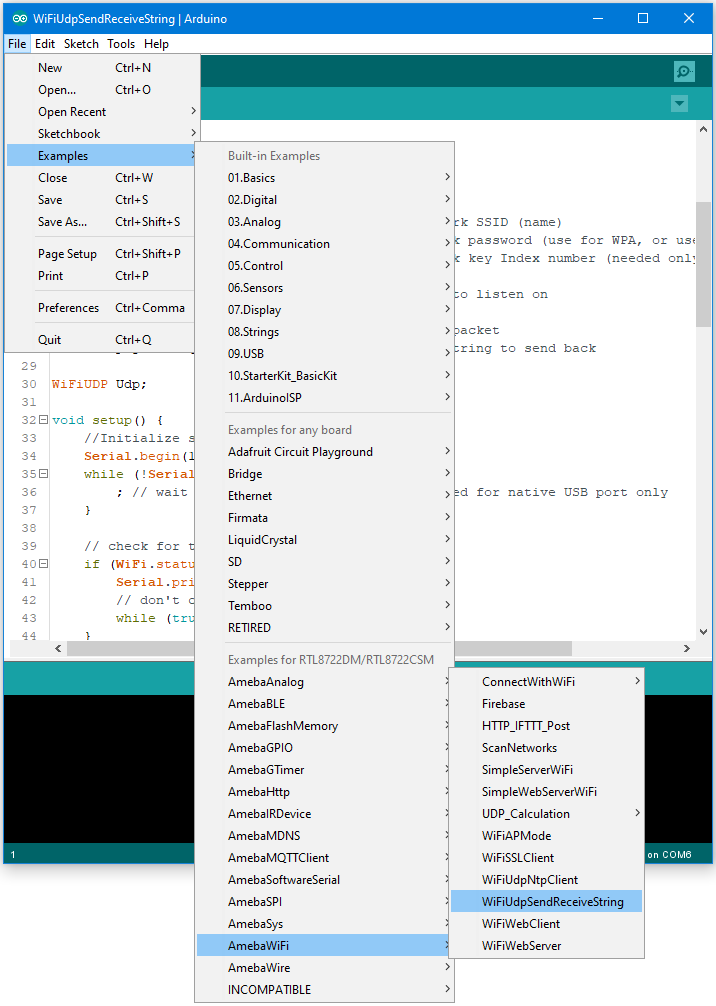
Modify the highlighted code section (ssid, password, keyindex) to connect to your WiFi network.

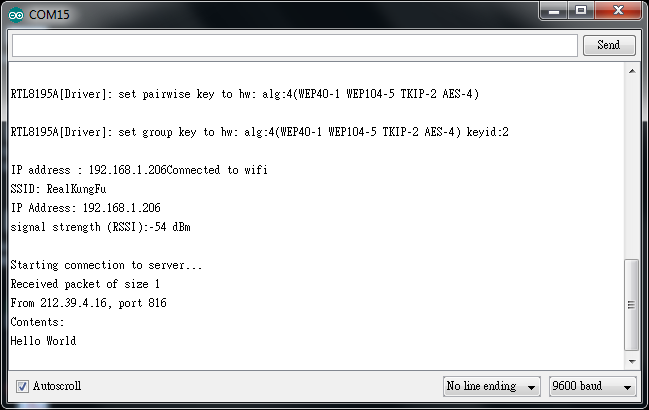
Compile the code and upload it to Ameba. After pressing the Reset button, Ameba connects to WiFi and starts the UDP server with port 2390. After the UDP server starts service, Ameba prints the “Starting connection to server” message and waits for client connection.
Choose client mode and fill in the IP of UDP server (which is the IP of Ameba) and port 2390, then click “UDP Connect”.
After the connection is established, fill in “Hello World” in the Buf 0 field in sokit and click “Send”. Then you can see the Ameba UDP server replies “acknowledged”.

Code Reference